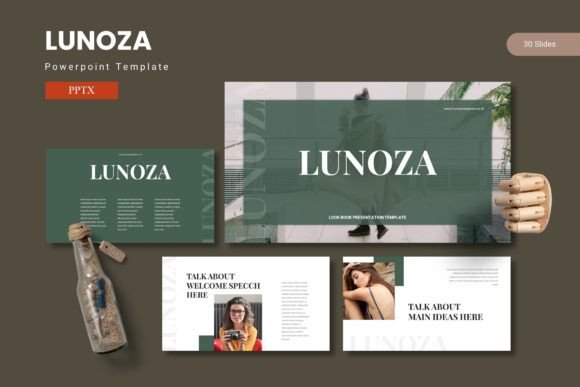
Lunoza - Powerpoint Template: Build Presentations That Actually Connect
You have probably sat through enough lackluster slide decks to know that great content alone does not guarantee a great presentation. The way information lands on the screen—its visual rhythm, the clarity of its data, and the emotional pull of its design—often determines whether your audience leans in or tunes out. The Lunoza - Powerpoint Template was built to close that gap. It is not just another set of slides; it is a thoughtfully structured toolkit designed to help you share ideas with confidence, using visually stunning layouts that blend data, graphics, and compelling content.
This article walks through what the Lunoza - Powerpoint Template actually offers, where it shines, who benefits most from it, and how to decide if it is the right fit for your next project.
What Makes the Lunoza - Powerpoint Template Different
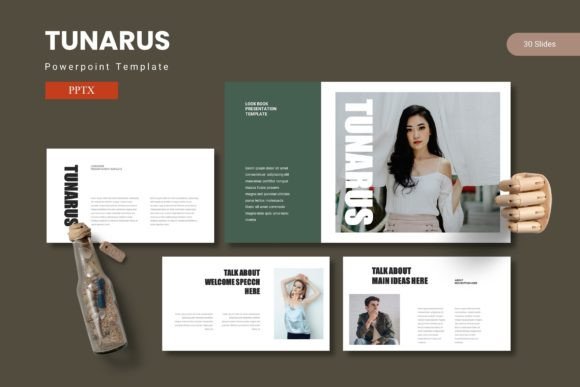
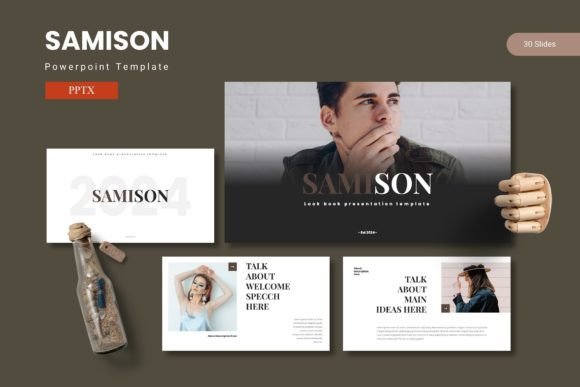
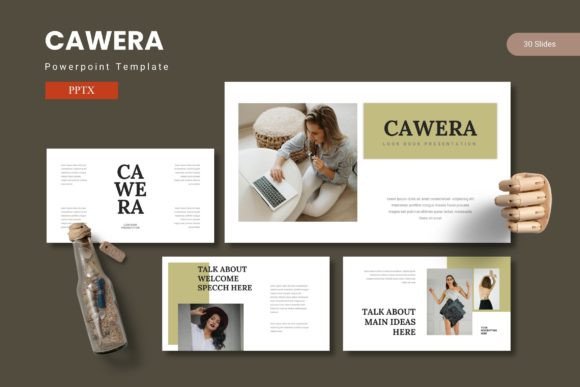
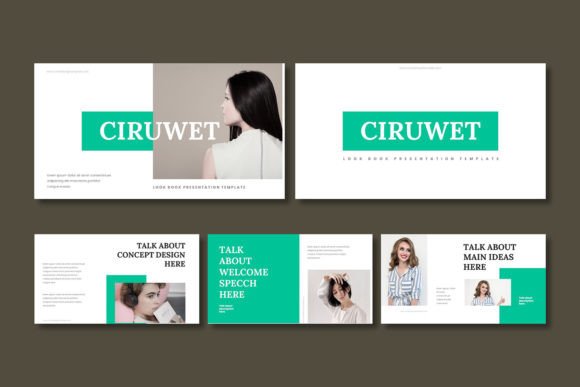
Templates often fall into one of two camps: rigid corporate decks that feel impersonal, or overly artistic layouts that sacrifice clarity for flair. The Lunoza - Powerpoint Template strikes a balance. With 150 total slides spread across 5 premade color schemes, you get enough variety to cover lengthy presentations without repeating the same layout. Each color scheme includes 30 slides, giving you a full deck's worth of content in the palette that fits your brand or message.
The template is built on Master Slides, which means any change you make to a master layout automatically updates across slides that use it. That might sound like a small detail, but if, for example, you realize halfway through building a deck that your headline font needs to be bolder, you can fix it once and watch the entire presentation fall in line. This feature alone saves hours of manual editing.
Perhaps more important is the handcrafted infographic approach baked into every slide. Instead of generic charts and clip-art-style visuals, the template provides pixel-perfect illustrations that are fully resizable and editable. You can scale an infographic up for a full-slide reveal or shrink it to sit beside a block of text without losing clarity or visual weight.
Slide Breakdown and Structure
The 150 slides are organized into 5 template sections, each containing 30 slides. This structure makes it easy to build a narrative arc across your presentation. You can dedicate one color scheme to a product launch, another to quarterly reporting, and still have three more color schemes for future use. The inclusion of section break slides helps your audience mentally transition between topics, which is especially useful for longer decks or training materials.
Key slide types include:
- Gallery and portfolio slides with drag-and-drop picture placeholders
- Data visualization layouts that pair charts with explanatory text
- Title and section dividers that establish visual hierarchy
- Content slides with flexible text and image arrangements
All graphics are resizable and editable, and the drag-and-drop picture placeholders mean you never have to manually crop or position an image. Just drag your photo into the designated area, and the slide adjusts around it.
Where the Lunoza - Powerpoint Template Excels
In my own experience building presentations across different industries, the most time-consuming part is rarely the content itself—it is the formatting. The Lunoza - Powerpoint Template eliminates most of that friction. I used it recently for a client pitch in the renewable energy sector, and the ability to swap between color schemes meant I could test three different looks in under ten minutes before settling on a deep green palette that matched the client's brand guidelines.
The 5 color variations are stored as separate PPTX files, each containing 30 slides. This approach keeps each file focused and uncluttered. You are not scrolling through 150 slides to find the one layout you need; instead, you open the color scheme that fits your project and work from there. If you need a layout from a different color scheme, you can copy it between files seamlessly.
The template also includes a Readme First folder with font and photo information, which might sound minor, but it saves real time. Nothing derails a polished deck faster than missing fonts or low-resolution placeholder images. The Readme file tells you exactly which fonts to install and where to find recommended photo sources, so your final file looks exactly like the previews.
Who Benefits Most from This Template
While the Lunoza - Powerpoint Template works well for almost anyone who needs to create professional slides, certain groups will find it especially valuable:
- Business owners and entrepreneurs who pitch to investors or clients regularly and need a consistent visual identity without hiring a designer every time.
- Marketing and communications professionals who produce weekly or monthly reports, campaign recaps, or strategy decks where data visualization matters.
- Educators and trainers who need section breaks and clear visual hierarchies to keep learners engaged over longer presentations.
- Freelancers and creators who juggle multiple clients with different branding requirements and need quick color variations.
- Non-designers who want polished, professional slides without learning advanced PowerPoint techniques.
That said, if you are building highly specialized presentations—say, a scientific conference poster with dense data tables or a technical training manual with complex diagrams—you might need to supplement the template with your own custom slides. The template excels at structure and visual impact, but it does not try to be every type of presentation tool.
Real-World Scenarios and Applications
Consider a scenario where you are preparing a quarterly business review for your executive team. You need to present revenue trends, customer acquisition metrics, and key initiatives from the past three months all in a single deck. The Lunoza - Powerpoint Template allows you to use one color scheme for the financial data, a section break to transition into customer insights, and another set of slides for initiative highlights. The handcrafted infographics turn raw numbers into visual stories that your audience can absorb quickly.
Another example: a creative agency pitching a branding campaign to a potential client. The gallery and portfolio slides let you showcase past work without awkward image placements. You can drag screenshots, mockups, and photographs into the placeholders, and the pixel-perfect alignment makes the portfolio section look as good as your actual work.
For internal training or onboarding presentations, the section break slides become natural stopping points where you can pause for questions or group activities. The consistent layout across each section also helps trainees follow along without getting distracted by shifting design elements.
Practical Strengths and Honest Limitations
Let's start with what the template does exceptionally well:
- Speed of setup. You can go from an empty PowerPoint file to a fully branded deck in under an hour, assuming your content is ready.
- Visual consistency. The Master Slides architecture ensures that fonts, colors, and spacing stay uniform throughout.
- Editable graphics. Every illustration, icon, and infographic element can be recolored, resized, or repositioned to match your message.
- Five distinct color schemes. Each scheme is polished and usable, not just slight variations of the same palette.
On the other hand, there are a few considerations to keep in mind:
- The template is PowerPoint-native. It comes in PPTX format, so if your workflow relies heavily on Google Slides, Keynote, or other tools, you may need to convert files, which can sometimes break formatting.
- 30 slides per color scheme is generous, but if you need more than 30 slides for a single color scheme, you will need to duplicate layouts or mix schemes within a single file.
- Advanced animations and transitions are not the focus here. The template prioritizes static design quality and structural clarity. If you need complex animated sequences, you might look for a more motion-oriented template.
How to Evaluate Whether Lunoza Fits Your Needs
Before committing to any template, I recommend thinking through three things:
- Your presentation volume. If you create one or two decks per year, even a basic template can work. But if you regularly produce presentations, the Lunoza - Powerpoint Template's 150-slide library and 5 color schemes will pay for themselves in time saved.
- Your brand flexibility. The 5 color variations cover a decent range, but if your brand uses highly specific colors or custom fonts that are not included, you will need to do some manual adjustments. The good news is that Master Slides make those adjustments relatively painless.
- Your audience expectations. If your stakeholders are used to seeing polished, agency-quality decks, this template helps you meet that standard without outsourcing design. If your audience cares more about raw data detail than visual polish, you might prioritize the content slides over the infographic-heavy layouts.
Final Thoughts
The Lunoza - Powerpoint Template is not trying to reinvent presentation design. Instead, it does something more practical: it gives you a reliable, well-built foundation so you can focus on your message rather than your margins. The combination of 150 total slides, 5 color schemes, handcrafted infographics, and Master Slides-based editing makes it a strong choice for anyone who presents regularly and wants to do so with confidence.
Whether you are pitching a new idea to stakeholders, reporting results to your team, or building a portfolio to showcase your best work, the Lunoza - Powerpoint Template offers a visual language that is both flexible and trustworthy. That is what good design does—it steps out of the way and lets your ideas lead.