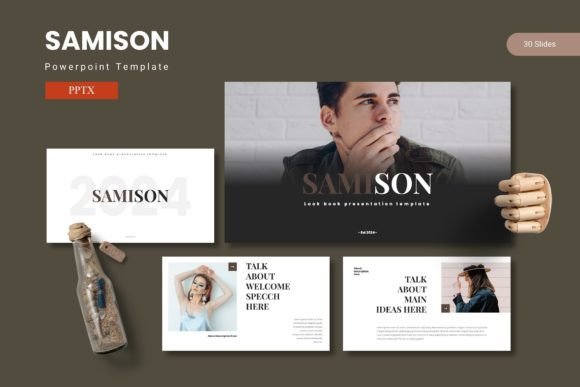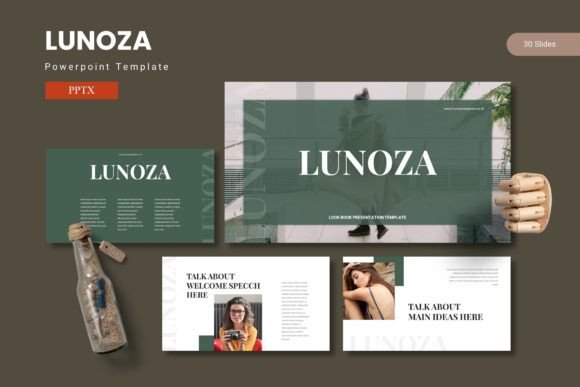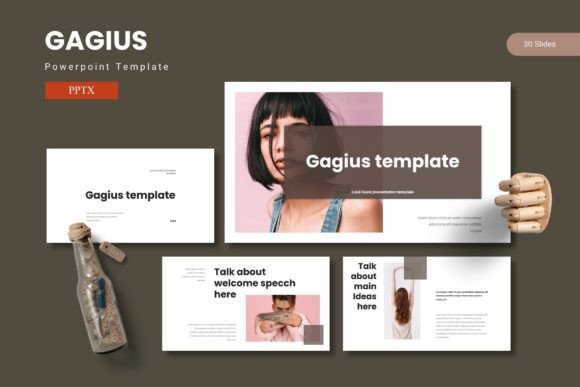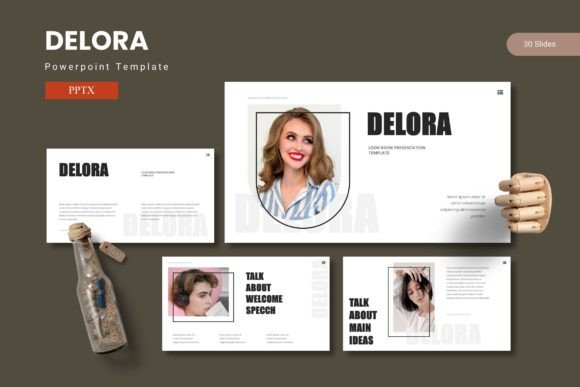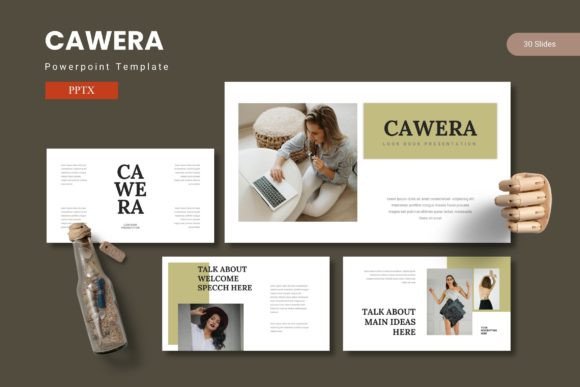
Cawera – Powerpoint Template: Build Confident, High-Impact Presentations
Every presentation is a communication tool. Whether you’re pitching a business idea, teaching a class, or reporting quarterly results, your slides need to carry your message clearly and convincingly. The Cawera – Powerpoint Template is designed to help you do exactly that—without spending hours on design. It combines a large library of customizable slides, handcrafted infographics, and five pre-made color schemes, all built on a master slide layout system that saves time and ensures consistency.
Cawera isn’t just a collection of pretty slides. It’s a workflow tool. It fits naturally into the process of planning, creating, reviewing, and delivering a presentation. If you’ve ever struggled with aligning graphics, choosing colors, or formatting data charts, this template takes those friction points out of your routine. Here’s how to integrate it into your own process—from preparation to final delivery.
Understanding What Cawera Offers
Cawera includes 150 total slides organized into 5 pre-made color variations (30 slides per variation). That means you get five distinct visual identities from a single file. Each color set is consistent across the entire deck—section breaks, infographics, portfolio slides, gallery layouts, and picture placeholders all share the same palette. The graphics are pixel-perfect illustrations, fully resizable and editable within PowerPoint. Drag-and-drop picture placeholders let you swap images without breaking the layout.
- 150 slides across 5 color schemes
- 30 slides per template section – covers intros, content, data, galleries, and closers
- Section break slides to organize your narrative
- Handcrafted infographics built on master slides
- All graphics resizable and editable
- Picture placeholders – drag and drop your photos
- 5 PPTX files (one per color scheme) plus a readme
This structure is intentional. It lets you choose a color direction early in the process and then focus on content without tweaking design elements slide by slide. The master slide approach means changing one element updates every slide that uses it—a huge time saver during revisions.
Where Cawera Fits in Your Presentation Workflow
A typical presentation project has four phases: planning, structuring, designing, and polishing. Cawera primarily supports the designing and polishing phases, but it also influences how you structure your content because the slide library gives you a ready-made narrative framework.
Before You Open PowerPoint: Planning with the Template in Mind
Knowing you have Cawera available changes how you prepare. Instead of thinking about slides from scratch, you can review the 30-slide structure of your chosen color scheme and map your key points to the available slide types. For example, if you see a dedicated portfolio slide, you’ll know to gather three to six project images and write short captions. If you spot an infographic for process flows, you can outline steps beforehand. This alignment between content planning and template capabilities reduces rework.
I recommend downloading the readme first file included in the folder. It lists the fonts used (so you can install them early) and provides a quick overview of color codes and master slides. Integrating this step into your preparation routine ensures no surprises during design.
During Creation: Structuring Your Deck Efficiently
Open the PPTX file that matches your desired color scheme. Because Cawera uses master slides, you’ll see labeled layouts in the slide master view. The most efficient workflow is to:
- Delete slides you don’t need – start with a clean subset of 10–20 slides based on your outline.
- Apply slide layouts from the master (e.g., “Title with Infographic,” “Gallery 3 Images”) rather than copying and pasting content haphazardly.
- Drag and drop images into the picture placeholders – they will automatically crop and scale to fit.
- Edit text directly in the placeholders. Use the built-in font styles to maintain hierarchy.
- Customize infographics by selecting the chart elements and changing colors, sizes, or text. Since graphics are vector-based, you can resize without quality loss.
This approach keeps your deck visually unified from the first slide to the last. The section break slides act as natural pauses in your narrative, helping your audience follow transitions between topics.
After the First Draft: Refining and Adapting
Once your content is in place, you can fine-tune. Cawera’s five color variations mean you can switch the entire deck’s look by opening a different PPTX file and copying your content over. That’s useful when you need to match a corporate brand or test which palette resonates better with your audience.
Because all graphics are editable, you can adjust icon colors, reposition elements, or combine slide elements across different color schemes. For example, you might take a data chart from the blue variation and an icon set from the green one—just copy and paste between files. The universal master slide structure ensures that formatting remains intact.
Practical Implementation Tips for Different Roles
Cawera is versatile enough for a range of users. Here are workflow examples based on common roles.
Entrepreneurs and Founders
You need a pitch deck that communicates business traction clearly. Use the portfolio and gallery slides to showcase product mockups or customer testimonials. The infographic slides work well for business model diagrams and growth metrics. Because the template includes 30 slides per color, you can build a complete pitch without worrying about design consistency. I recommend starting with the section break slides to divide your narrative into problem, solution, market, and financials.
Marketers and Content Creators
For marketing presentations, speed matters. Use the drag-and-drop picture placeholders to quickly swap campaign visuals or headshots. The handcrafted infographics simplify data storytelling—for instance, a funnel layout can illustrate lead generation cycles. Having five color schemes lets you match your brand guidelines without starting from scratch. If you present to multiple clients, keep separate PPTX files for each color theme to avoid file clutter.
Educators and Trainers
When teaching, visual aids need to be clear and unambiguous. Choose a high-contrast color variation (like the dark blue or black) for readability on projectors. Use the section break slides to separate modules or topics. The gallery slide is effective for before-and-after examples or case study images. Because the template is based on master slides, you can create a consistent lecture series across multiple decks by reusing the same layout structure.
Freelancers and Small Business Owners
You often wear the designer hat even if you’re not one. Cawera removes the guesswork. After downloading, install the recommended fonts (listed in the readme) to keep the typography consistent. If you collaborate with a team, share the PPTX file—everyone works with the same set of master slides. The 150-slide library means you’re unlikely to run out of layout options for proposals, reports, or client updates.
Interacting with Other Tools and Assets
No template exists in isolation. Cawera interacts smoothly with standard PowerPoint features and a few external resources.
- PowerPoint versions: Works with PPTX format. Tested in Office 2019 and Microsoft 365. Some advanced animations may render differently in older versions.
- Fonts: The template uses specific fonts. The readme file names them so you can download free alternatives or purchase if needed. Substituting with a similar Google font retains the layout integrity.
- Image editors: While the picture placeholders accept JPEG and PNG, for best results, crop images to a 16:9 aspect ratio before inserting. This avoids unexpected cropping.
- Color code integration: Each color scheme has defined hex values. You can match these with your brand’s web presence, printed materials, or social media graphics. Use the eyedropper tool in PowerPoint to sample colors from your logo and adjust slide backgrounds accordingly.
For long-term use, consider creating a small library of commonly used infographics from Cawera—export them as PNG or SVG and reuse in future presentations that don’t use the template. This builds a personal asset library over time.
Preparing for Quality Control and Consistency
Even with a polished template, review steps are essential. Because Cawera uses master slides, changing a master element (like a background shape) updates all slides. This is powerful but requires caution: always duplicate the master slide before major edits so you have a fallback. I suggest keeping one unmodified PPTX file as a “source of truth” and a separate working copy.
Check these items before presenting:
- Picture placeholders contain correctly scaled images (no stretched logos).
- Infographic text is editable – right-click and check formatting.
- Color variation matches your intended audience (use high contrast for projectors, softer tones for screens).
- All slides use the same theme (no accidental mix of color schemes).
Optimizing for Long-Term Use
Cawera isn’t a one-time asset. If you update your presentation quarterly, save each version with a naming convention like “Cawera_Q1_2025.pptx.” Over time, you’ll accumulate a archive of branded presentations that share a common visual language. This consistency reinforces your professional identity.
You can also repurpose individual slides. Need a quick one-pager for a conference? Take the portfolio layout, add your latest achievements, export as PDF. Need an internal status report? Use the infographic slide for a Gantt chart or progress bar. The modularity of the template supports both full decks and single-slide deliverables.
When collaborating with remote teams, upload the Cawera PPTX to cloud storage and use co-authoring (if supported). Because master slides are protected, team members can modify content slides without breaking the design framework.
Final Observations on Process and Mindset
A presentation template is only as effective as the process around it. Cawera accelerates the design part, but the real outcome depends on how well you prepare your message and structure your flow. I’ve found that using the section break slides early in drafting helps me resist the urge to cram too many points into one slide. The infographics force me to simplify data: if the chart element has room for only three categories, I trim my data accordingly.
Novice users sometimes try to fill every slide with graphics and color. The template already provides plenty of visual interest—trust the white space. Let the infographics speak for themselves rather than adding extraneous icons. This restraint makes your slides clearer and your message stronger.
If you’re evaluating Cawera against other templates, pay attention to the master slide architecture. Many templates offer similar slide counts but lack consistent color schemes and section breaks. Cawera’s five pre-made colors and 30-slide sections are its real differentiator. They allow you to switch perspectives without redesigning, which is invaluable when presenting to multiple stakeholders with different visual preferences.
Ultimately, the goal is to share ideas with confidence. Cawera gives you a polished vehicle for your content. Use it as a starting point, adapt it to your workflow, and focus your energy where it matters most: the substance of your presentation.