Nubora – Powerpoint Template: Why Most Users Waste Time (And How You Can Avoid It)
You’ve got an idea worth sharing. Maybe it’s a pitch for a new client, a quarterly business review, or a course you’re launching. You open PowerPoint, stare at the blank slide, and suddenly that confident idea feels flat. That’s exactly where most people reach for a template. And if you’re looking at Nubora – PowerPoint Template, you’re already on a better path. But even a great template can be misused. Let’s talk about the common missteps people make when choosing and using a template like Nubora, and how you can sidestep them entirely.
The Mistake of Treating All Slides as Equal
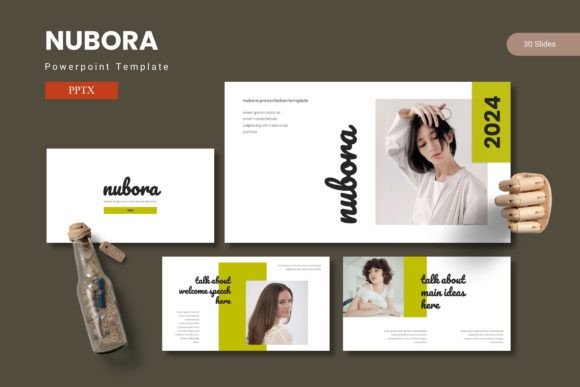
Nubora comes with 150 total slides across five premade color schemes. Thirty slides per template section, plus dedicated section break slides, gallery slides, and portfolio layouts. Yet I see users pick one slide design and duplicate it for the entire deck. They ignore the section breaks, skip the infographics, and treat the portfolio slides as afterthoughts. That approach collapses the visual rhythm your audience needs.
Each slide type in Nubora serves a purpose. Section breaks give your audience a moment to reset. Infographic slides turn dense data into digestible visuals. Gallery and portfolio slides let you show work without cramming multiple images into a single layout. When you use only one style, your presentation becomes monotonous. Viewers stop paying attention because every slide looks the same.
Better approach: Map your content to slide types before you start building. If you have five main topics, use a section break slide before each one. Spread infographic slides throughout, not just in the data section. Use portfolio or gallery slides when you showcase case studies, products, or client work. Nubora gives you the variety—use it deliberately.
Ignoring the Master Slide Foundation
Nubora is built on master slides, which means you have a unified system for fonts, colors, and spacing. I’ve watched people open the file and start editing every single slide individually. They change the font on slide three, resize a text box on slide seven, and move a graphic on slide twelve. After twenty slides, nothing aligns. The presentation looks like it was made by three different people.
The master slide setup is there to save you from exactly that chaos. When you edit the master slide, every slide that inherits from it updates automatically. That means consistent headers, consistent body text, and consistent placement of logos or decorative elements. Ignoring this feature turns a 150-slide template into a liability rather than an asset.
Practical advice: Before you start dropping content into slides, spend fifteen minutes exploring the master slide view. Look at the layout masters, the color variations, and how the placeholders work. Drag a photo into a picture placeholder instead of inserting a new image box. The placeholder already has the correct size, position, and cropping. You’ll save hours and end up with a polished deck.
Overlooking the Five Color Variations
Nubora includes five color scheme options in the folder. Some users pick the first one they see and never check the others. This is a missed opportunity because the color scheme sets the emotional tone of your entire presentation. A dark scheme with high contrast works well for evening events or bold, modern brands. A lighter scheme feels more approachable for educational or internal team presentations.
The mistake isn’t picking one scheme—it’s picking without context. I’ve seen a freelancer use a muted professional palette for a creative pitch that needed energy and vibrancy. The result was a deck that felt safe when it should have felt daring. The template provides the options; you just need to match them to your message and audience.
How to choose wisely: Consider where your presentation will be shown. A boardroom with a projector often benefits from higher contrast and larger text. A webinar shared on screens may tolerate lighter tones. Test the same slide with two different color schemes and see which one makes your content easier to read from three meters away. Also think about your brand colors—Nubora’s schemes may align closely, or you may find one that complements your existing materials well.
Treating Infographics as Decoration
Nubora provides handcrafted infographic elements that are resizable and editable. Yet many users drop an infographic onto a slide without adjusting it to fit their actual data. They keep the placeholder numbers and generic icons, thinking the graphic alone adds credibility. It does the opposite. Audiences are quick to spot when a chart or diagram doesn’t match the spoken numbers.
Infographics are not decoration—they are communication tools. A well-built infographic reduces the time it takes for someone to understand a relationship or trend. A generic one creates confusion or, worse, distrust. If your revenue grew 15 percent but the infographic shows a flat line because you didn’t update it, your audience will notice the mismatch before you finish your sentence.
Actionable approach: Treat each infographic slide as a mini-project. Replace placeholder text with your actual figures. Adjust the graphic elements to reflect real proportions. If the template includes an icon that doesn’t match your industry, swap it using the editable vector graphics. Nubora’s illustrations are pixel-perfect and fully resizable, so you aren’t stuck with someone else’s visual metaphors.
Neglecting the Section Break Slides
Section break slides appear between major parts of a presentation. They typically have a bold visual, a short title, and minimal text. I see users either skip them entirely or stuff them with content. A section break that lists three bullet points and a subheading loses its purpose. It’s no longer a pause—it’s just another content slide.
The psychology behind a section break is simple: your audience’s attention wanes after about ten minutes of continuous information. A section break slide signals a shift in topic and gives viewers a moment to re-engage. Nubora includes these slides specifically to help you structure your deck with natural transitions.
How to use them well: Keep the section break slide clean—one word or a short phrase, maybe a single impactful image. Use it before you change direction. For example, after presenting market challenges, use a section break titled “Opportunities” before you walk through solutions. That visual pause tells the audience the context has shifted. It takes one second to process but makes your narrative flow feel intentional and professional.
Downloading Without Checking the File Details
Nubora’s main file includes five PPTX files, one for each color scheme, with thirty slides per file. The folder also contains a Read Me First document, font information, and photo details. A surprising number of people skip the Read Me First file. They open a PPTX, see placeholder text, and start editing without knowing which fonts are used or where to find the image credits.
Later, they present on a machine that doesn’t have the right fonts installed, and the entire deck reflows. Text boxes shift, headings resize, and the professional look they worked for unravels in real time. This is one of the most preventable mistakes I encounter.
What to check before you start: Open the Read Me First file. Note the font names listed there. If you don’t have those fonts installed, download them before you edit a single slide. Many fonts are available for free or are included in standard office suites. Also check the photo information so you know which images are placeholders and which are included with the template. This upfront check takes five minutes and eliminates the most common technical failure point.
Dragging Images Without Using Picture Placeholders
Nubora includes picture placeholders designed for drag-and-drop image insertion. The placeholder keeps your image cropped and positioned within a predefined frame. Yet some users still insert images using PowerPoint’s default “insert picture” command, which places the image as a free-floating object. They then spend time resizing, cropping, and repositioning every image.
The result is inconsistent image framing from slide to slide. One photo might be centered, another offset, and a third stretched to fill a different proportion. This inconsistency distracts from your content and makes the deck look amateurish, even if the template itself is polished.
Simple correction: Right-click the picture placeholder icon on any slide, choose “Change Picture,” and select your image. The placeholder automatically applies the correct crop and positioning. If you need to adjust the framing slightly, use the “Crop” tool within the placeholder rather than moving the image box. This keeps all your visuals aligned to the template’s grid.
Underestimating the Portfolio and Gallery Slides
If you’re a freelancer, small business owner, or creative professional, Nubora’s gallery and portfolio slides are among its most valuable assets. They allow you to display multiple images in a clean, structured layout without building custom grids. Yet I see users either leave them empty or replace the images with text-heavy explanations.
A portfolio slide should let the visuals speak. When you add paragraphs of text beneath each image, the slide becomes cluttered and the impact of your work is diluted. The gallery layout is designed for quick visual scanning. Trust the design.
Better use: For portfolio slides, use high-quality images that represent your best work. Keep captions to one line—project name or client name is enough. If you need to explain context, do it verbally during the presentation or include a separate case study slide. Let the gallery slides be the visual highlight they were built to be.
Final Checks Before You Present
Once you’ve built your deck using Nubora, take it through a brief QA process. Check that all fonts render correctly on the device you’ll present from. Verify that images in picture placeholders haven’t been accidentally distorted. Run through the slides in presenter view to confirm that section breaks appear where you intended. And if you’re sharing the file with someone else, include the font files or convert to PDF if formatting must remain fixed.
Nubora gives you a strong foundation—150 slides, five color schemes, infographics that actually help you explain data, and a master slide system that keeps everything consistent. The common mistakes aren’t flaws in the template; they’re shortcuts that users take when they’re in a hurry or unaware of the tool’s structure. Slow down at the start, use the features as they were designed, and you’ll end up with a presentation that looks like it took twice the time it actually did. That’s the whole point of a good template—not to do the thinking for you, but to remove the friction so your ideas can come through clearly.