Rumeta – Google Slide Template: A Versatile Toolkit for Impactful Presentations
Presentations remain one of the most direct ways to communicate complex ideas, but the process of building them from scratch can be time‑consuming and inconsistent. Templates bridge that gap by providing a structured foundation that still allows for full creative control. Rumeta – Google Slide Template enters this space as a comprehensive resource that combines a large slide count, multiple color schemes, and handcrafted visual elements. Whether you are preparing a quarterly report, an educational lecture, or a creative portfolio, this template aims to streamline your workflow while maintaining visual quality. This article examines its features, practical applications, customization options, and the considerations that come with using a pre‑designed slide system.
Why a Pre‑Designed Slide System Matters
Every presentation benefits from a coherent visual language. Colours, fonts, and alignment work together to guide the audience’s focus and reinforce the message. When you start with a blank canvas, you often spend more time on formatting than on content. Templates like Rumeta – Google Slide Template solve this by offering a complete set of slides that already respect design principles. The result is a professional look that you can achieve in minutes, not hours. Moreover, because the template is built for Google Slides, you can collaborate in real time, access it from any device, and avoid compatibility issues that sometimes occur with desktop‑only software.
Core Features That Define Rumeta
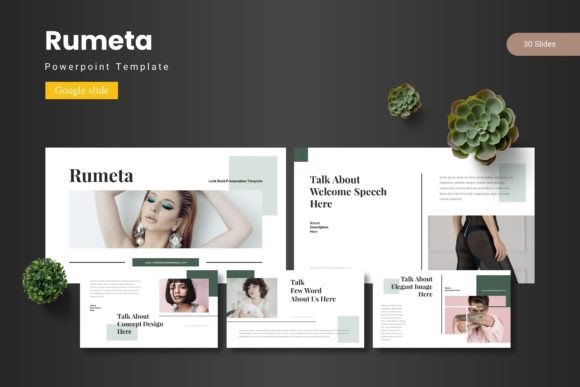
The template comes with 150 total slides spread across five premade colours. Each colour variant includes 30 slides, so you effectively receive five complete decks in one package. These slides are not just copies of the same layout with different colours; each colour scheme is carefully selected to work for different contexts — muted tones for corporate environments, vibrant hues for creative teams, and neutral palettes for academic settings. Every set includes section break slides, which help segment your presentation logically and give your audience a moment to digest before moving to the next topic.
Another standout element is the handcrafted infographic library. Instead of generic charts, you get pixel‑perfect illustrations that are fully resizable and editable. The graphics range from process flows to comparison diagrams, and they are built on Master Slides. This means any changes you make to a master — such as adjusting a font or swapping a colour — will automatically update every slide that relies on that master. Consistency is maintained throughout the deck without manual effort.
Picture Placeholders and Drag‑Drop Simplicity
One of the most practical features is the picture placeholder system. Instead of inserting an image and then spending time cropping or resizing it to fit a frame, you simply drag and drop your photo into the designated area. The placeholder automatically adjusts to the correct proportions, preserving the layout you designed. This is especially useful when you work with multiple images, such as in a gallery or portfolio slide. The template includes dedicated portfolio slides that allow you to showcase work in a grid or carousel style, giving creative professionals a ready‑made canvas for their projects.
Corporate and Business Environments
A sales team preparing a pitch deck often needs to move quickly between data slides, case studies, and team introductions. Rumeta – Google Slide Template provides dedicated slides for executive summaries, key metrics, timeline visuals, and contact information. The ability to switch between five colour options means the same deck can be adapted for different clients or departments without starting over. The infographic elements are particularly useful for turning raw numbers into easy‑to‑understand visuals, such as growth arrows or progress bars. Because all graphics are editable, you can change colours to match your brand guidelines without breaking the design.
Educational and Academic Settings
Teachers, lecturers, and students often need to present research findings, lesson plans, or project outcomes. The template’s section break slides help organise a syllabus or a multi‑chapter lecture. The image placeholders allow you to insert diagrams, photographs, or screenshots quickly. For group projects, the collaborative nature of Google Slides combined with the template’s consistent structure ensures that each team member’s contributions look cohesive. The handcrafted infographics can replace traditional chart‑making tools, making it easier to illustrate complex concepts like cycles, hierarchies, or cause‑and‑effect relationships.
Creative Professionals and Portfolios
Designers, photographers, and artists often need a presentation that itself feels like a visual portfolio. The drag‑drop picture placeholders make it easy to create a clean, gallery‑style flow. The portfolio slides allow you to present multiple works without cluttering the layout. Because the template includes five colour variants, you can choose a light, minimal theme for photography or a bold, colourful one for a design proposal. The pixel‑perfect illustrations ensure that even if you project the deck onto a large screen, edges and lines remain sharp.
Customization and Flexibility: Going Beyond the Presets
While the template comes ready to use, its real strength lies in how easily you can tweak it. Every graphic, icon, and shape is an editable object. You can resize them, change their colour, or replace them with your own assets. The Master Slides structure means that global changes take seconds. For example, if you decide halfway through a project that the heading font should be different, you update the master once and all slides follow. The 5 PPTX files included in the main file are compatible with both Google Slides and Microsoft PowerPoint, so you are not locked into one ecosystem. The Google Slides version includes 30 slides per colour, mirroring the PowerPoint structure.
Font and Photo Information
The package comes with a Readme First document that explains which fonts are used and where to find them. Most fonts are free for commercial use, but it is always wise to verify licensing for your specific context. The template also includes photo information – whether stock photos are embedded or only placeholders – so you know what to expect. This transparency is valuable for users who need to ensure all assets are properly licensed for their final presentation.
Deleting Unused Slides Without Breaking the Deck
With 150 slides, you will almost certainly not use every one. It is important to understand how the Master Slides work so that removing a slide does not accidentally affect the others. Because the template is built on masters, deleting a slide that uses a particular master only removes that instance, not the master itself. You can safely delete any slide that does not serve your purpose. If you later need that layout again, you can add a new slide from the same master. This modularity is a key advantage over heavily nested templates.
Maintaining Readability and Consistency
Even with a polished template, content decisions matter. Overloading a slide with text reduces the impact of the visuals. Use the infographic slides to replace bullet lists whenever possible. The handcrafted icons and diagrams are designed to convey information at a glance, so let them carry the narrative. Stick to one or two of the five colour schemes per deck to avoid visual confusion. The template provides a natural guide for this, but you have the freedom to mix if you have a specific reason.
How the Template Streamlines Workflow
Imagine you are building a presentation for a product launch. You begin by selecting a colour variant that matches your brand — for instance, the blue scheme for a technology company. The first few slides are already laid out: a title slide, an agenda, a section break for the problem statement. You drag your product images into the placeholders, type your key points into the text boxes, and replace the dummy data in the infographics with real metrics. Because the infographics are editable, you can adjust the percentages or labels without learning a separate charting tool. Within an hour, you have a deck that looks like it took a day to design.
This efficiency is not limited to simple edits. The template’s gallery and portfolio slides allow you to present multiple images in a clean grid. A photographer might use the white‑based colour variant and fill six portfolio slides with their best work, adding short descriptions below each image. The section break slides create natural pauses between different series or themes. For a researcher, the same approach works with graphs and data tables instead of photos.
Comparative Perspective: Template vs. Ground‑Up Creation
Some presenters prefer to build everything from scratch to ensure uniqueness. That approach certainly works, but it often leads to inconsistencies in spacing, font sizing, and colour usage, especially when multiple people collaborate. Rumeta – Google Slide Template provides a framework that enforces consistency without stifling creativity. You can still choose your own fonts, colours, and images; the template just handles the structural heavy lifting. For teams, the ability to start from the same base reduces the “versioning” problem where one member inadvertently changes a layout that others rely on. The Master Slides system acts as a single source of truth.
Another common alternative is to download a single‑purpose template — one designed only for pitch decks or only for portfolios. Rumeta covers many use cases with its 150 slides, making it a better investment for someone who gives a variety of presentations. The five colour schemes also give flexibility without requiring multiple separate templates.
Practical Tips for Getting the Most out of the Template
- Start with the colour palette that matches your audience. Warm, saturated colours work well for energetic events; cool, muted tones suit formal reports.
- Use the section break slides as chapter markers. They give the audience a visual cue that a new topic is starting, which improves retention.
- Edit the Master Slide first. If you change the background or logo on the master, every slide updates instantly. This is faster than editing each slide individually.
- Replace all placeholder images with your own. The drag‑drop feature works best when you prepare your images in the correct aspect ratio — though the placeholders will crop them automatically if needed.
- Leverage the infographic slides for complex messages. Instead of a paragraph describing a process, use one of the handcrafted flow diagrams and label the steps.
- Keep a copy of the original template separate from your working file. That way you can always go back and grab a slide you deleted.
Understanding the File Structure
When you download the package, you receive a folder that contains five PPTX files (one for each colour), a Google Slides folder with 30 slides for each colour, and a Readme First document. The Google Slides folder includes separate files for each colour variant, so you can import them directly into your Google Drive. The same 30‑slide structure exists in both formats, but the PPTX files are useful if you need to open them in PowerPoint and then convert to Google Slides. The template also mentions “Font Photo Information” – a file that lists the fonts used and any photo credits or licensing details. This is essential for anyone who plans to distribute the presentation publicly or use it for commercial purposes.
Final Thoughts on Leveraging Rumeta for Impactful Presentations
The value of a well‑built template becomes clear when you face a tight deadline or a demanding audience. Rumeta – Google Slide Template offers the breadth of 150 slides, the depth of handcrafted infographics, and the flexibility of five colour variants. It addresses the common pain points of slide creation: inconsistency, time consumption, and lack of visual polish. By providing editable graphics, master‑slide consistency, and drag‑drop image placement, it lets you focus on your content rather than on layout tweaks. Whether you are a corporate executive, a university professor, or a freelance artist, this template provides a solid foundation that you can adapt to your specific needs. The result is a presentation that communicates clearly, looks professional, and leaves a lasting impression.